


Getting Started
with eRequests
eRequests is easy to use with both Gentu® and Genie®. For most users, eRequests will be ready and waiting for you to get started. Below are some simple instructions to help you begin using eRequests within the Gentu and Genie interfaces.
-
How to send eRequests with Gentu
eRequests is available in Gentu now and ready to use. To get setup, follow the steps on activating and configuring via the Gentu Knowledgebase article.
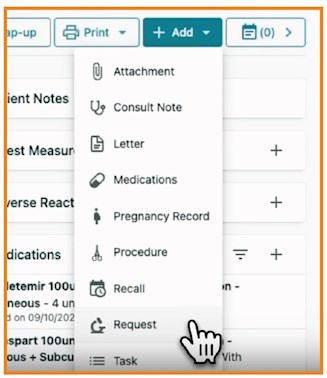
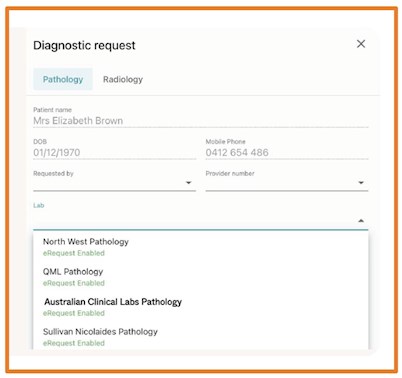
Once in the Gentu interface, simply click the ‘Add’ button and select the ‘Request’ option from the drop-down menu. Ensure you select ‘Australian Clinical Labs’ as the laboratory provider so you have access to the correct test menu.
For a full video demonstration of the new eRequests feature in Gentu, CLICK HERE.
-
How to send eRequests with Genie
Genie users v10.2.7 and above:
eRequests is built into v10.2.7 and above. Visit Creating eRequests to get started.
Genie users v10.2.2 - v10.2.6:
To enable eRequests, we recommend upgrading to the latest Genie version as no additional steps are required. However, if you wish to stay on your current version, you will need to follow the steps on Activating and Configuring.
Genie users v10.2.1 and below:
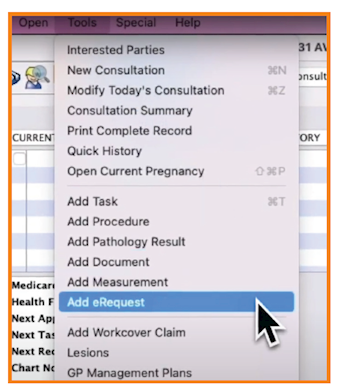
You will need to upgrade to a newer version to start using eRequests.Once in the Genie interface, navigate to the ‘Tools’ menu at the top of the page and select ‘Add eRequest’ from the drop-down menu. Ensure you select ‘Australian Clinical Labs’ as the laboratory provider so you have access to the correct test menu.
For a full video demonstration of the new eRequests feature in Genie, CLICK HERE.
Related Pages
eRequests
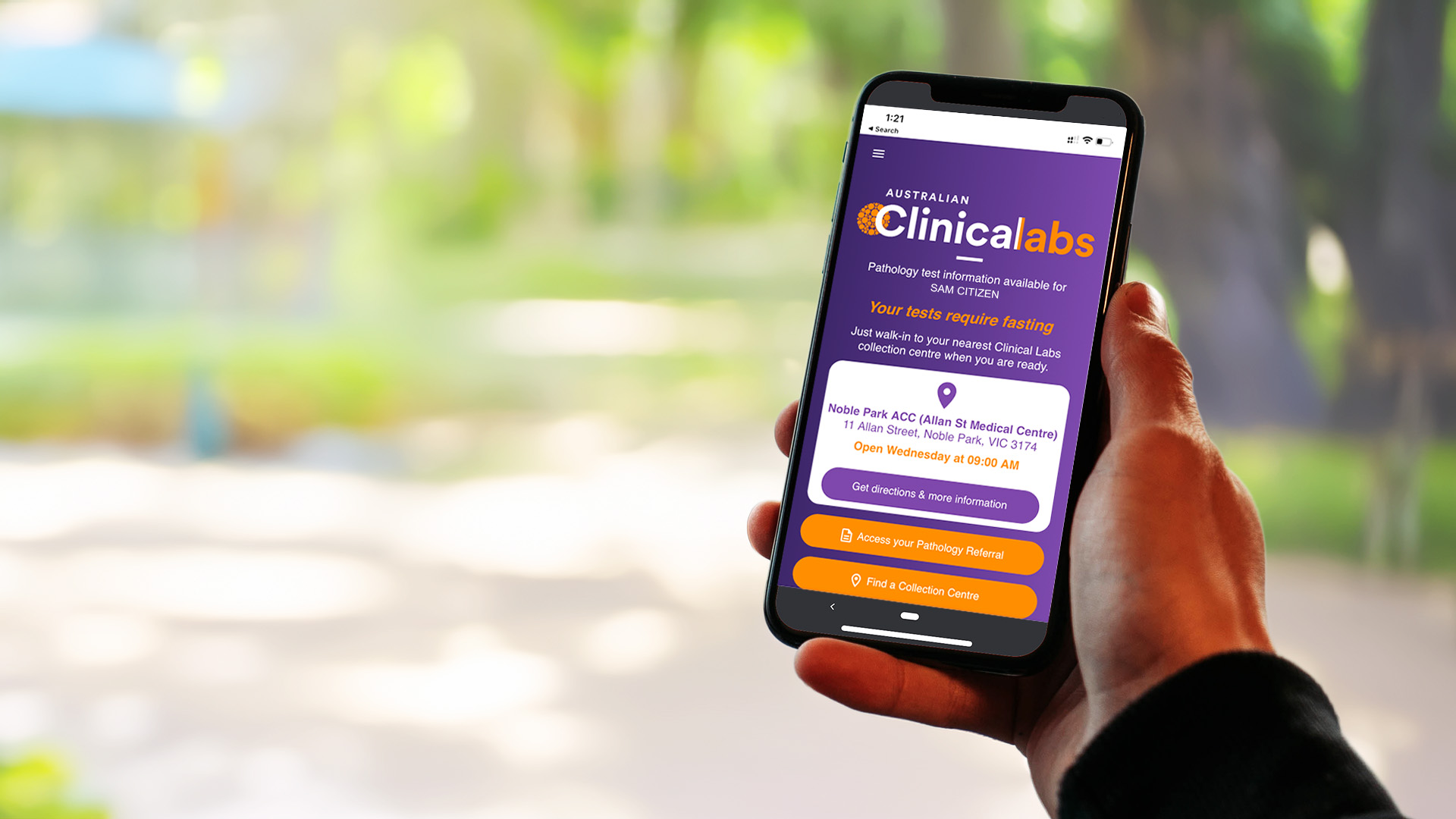
eRequests streamlines pathology request workflows by enabling Clinical Labs referrers to easily send patients an electronic copy of their referral via SMS.


eResults
eResults is an online platform and patient result viewer that gives you real-time, 24/7 access to patient results via your computer desktop viewer or mobile app.

eDownloads
Clinical Labs eDownloads automates the secure and direct transfer of patient pathology results into referrers' practice management software.